
Approximately 16 million small businesses in the United States operate exclusively online. The majority of these rely on templated, drag-and-drop platforms like Wix and Squarespace. This is a perfectly reasonable first step when starting a business. I started my company in February of 2025 and my first website was built on Squarespace.
Despite my site meeting my business needs at the time, I couldn't help but notice a distinct difference between my website and enterprise websites. The animations were smoother. Pages loaded instantly. Elements responded to my screen size in ways my templates never quite managed. At first I didn't put too much thought into it, but eventually the gap became impossible to ignore. I had to stop and wonder if I was doing something wrong.
During this time, I used ChatGPT (Claude Code was still a well-kept secret exclusive to Anthropic employees). So I asked ChatGPT to explain what made these enterprise sites so polished and refined. The answer was simple: custom code. Deployed on cloud infrastructure. That was it.
Welcome to part 2 of a 3-part series exploring the fundamentals of building with AI on AWS.
What Does This Guide Cover?
The user interface (UI) invites curiosity. The user experience (UX) earns attention.
So how do we get started? Let me first describe the three environments we'll be operating in.
- Your local repository. This is simply a folder on your computer where you'll store your code. It's nothing particularly fancy. Just a directory on your desktop or hard drive where your project lives while you're building.
- Your GitHub repository. GitHub serves as your continuous integration and continuous deployment (CI/CD) pipeline. It stores your codebase securely and lets you iterate with confidence. Two features matter most when you're starting out: the ability to revert to a previous version if something breaks, as well as something called branches. These are separate workstreams that let you experiment without affecting your live site. We'll keep it simple and work with two: a main branch (what's live) and a dev branch (where you test changes).
- AWS Amplify. This is where your code becomes a website. Amplify connects to your GitHub repository and renders your codebase on the web, making your site accessible to anyone. It's a fully managed service with features such as environment variables, secrets management to avoid hard-coding sensitive information, and even the ability to embed AI chat interfaces directly into your site.
Now that we have an understanding of the environments we're working in, let's talk about the tool we'll be using to leverage AI.
The Command Line Interface (CLI) is a text-based method of interacting with your computer or software by typing commands into the terminal in lieu of clicking around in graphical menus. The terminal is the text-based window where you type commands and see their output, usually to interact with the system’s CLI.
The terminal can seem a bit daunting at first but it is important that you learn to use it as the most efficient way to communicate with software and computer systems. There are many tools that combine your terminal with other tools such as ai coding assistants. One such tool is Kiro. Kiro is an AI-powered development environment that also has a dedicated command line interface called Kiro CLI.
For this project, we'll be using the Kiro CLI directly from our terminal.
How Do You Install the Kiro CLI?
To get started, we first need to download the Kiro CLI.
- Open your terminal
- Install the CLI by running the following command:
- Verify the installation:
NOTE: You'll need an AWS Builder ID to authenticate.
Once you've successfully logged into the Kiro CLI, you can now start the interactive chat by running the following command in your terminal:
How Do You Build Your First Project?
Let's go back to our Desktop and create a folder there. Name it whatever you want but let's follow ideal naming conventions by using lowercase letters and dashes rather than spaces.
For this sample project, I will call my working folder: sample-website
Now I can direct Kiro to operate inside of this working folder.
*I have observed that many who are beginners with AI chat interfaces often find themselves wondering what they should say to the AI. Talk to it the way you would talk to a co-worker. Refined prompting and context management comes with practice. To get started simply say whatever comes to mind while making every effort to keep the focus on what you want to build.
With Kiro now in the proper folder, we can leverage our prompting skills and detail precisely what we want to build.
Sample prompt:
Notice that I'm not micromanaging early in my project. I just want a good foundation for which to start iterating from.
BONUS TIPS!
- For professional websites, I include an explicit directive to never use emojis. Only icons.
- It helps to know your preferred color scheme and even better if you know your color scheme in hex color code.
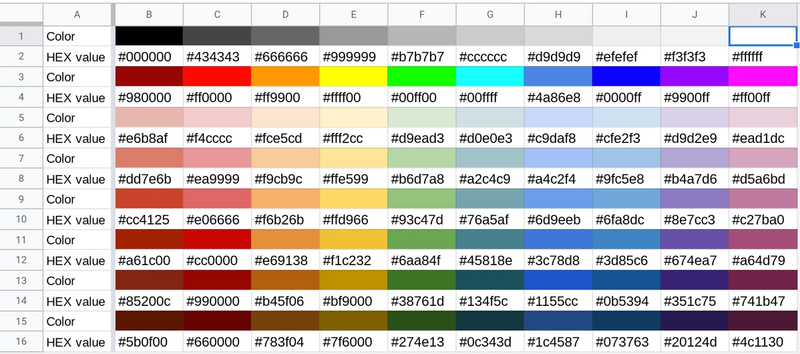
- If you have a business logo, upload it to your working folder and tell Kiro the name of the file as well as the fact that this is your logo. Kiro will use that knowledge to place it in ideal locations within your website.
- For more advanced front-end design, you can use Figma
The possibilities for front-end design are endless. Once you've built the code base that you want, its time to test it in your local server. For this you'll have to install npm. For some clarity, npm is a package manager that installs and manages your project’s dependencies. Dependencies are the packages your project needs in order to run or be developed To install npm, you'll run the following simple command:
Now you're ready to launch your site locally for your assessment. To this you run:
Your codebase will now render your website live in a local HTTP server such as https://localhost:3000.
I think its important to reflect on the fact that what you've now been able to do is leverage natural language to render a creative and interactive project in real life. This is not a mundane detail.
From here, you can iterate as you will and see the changes render immediately on your local server.
Once you are happy with the progress you've made on your codebase, its time to save on GitHub.
How Do You Set Up CI/CD with GitHub?
In order to save your codebase on GitHub, you have to create a GitHub repository. You can do this through the CLI if your GitHub account is appropriately configured or you can do it in the console. If you're a beginner I always recommend working out of the console first.
- Log into GitHub
- Select "Repositories" from the navigation bar
- Select "New"
- Fill in the information required
With your new repository created you can now push your codebase to GitHub. For the sake of technical clarity, I will provide you the list of commands you can run yourself in the terminal but if you're working in tandem with Kiro, you can simply say:
If you want to run these commands yourself, they would look like this:
Your codebase now lives in GitHub where you can further refine it.
The final step is getting our site live on the internet.
How Do You Deploy with AWS Amplify?
Now we turn our attention to the AWS Console. After logging in we search for "Amplify" in the search bar.
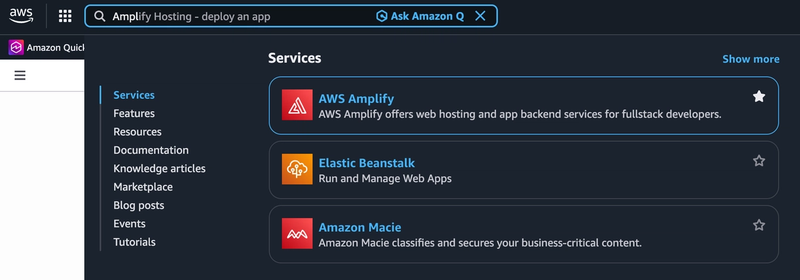
AWS Amplify apps are created and deployed in one region however, it is important to note that Amplify Hosting uses Amazon CloudFront, which serves cached static content (HTML, JS, CSS, images) from edge locations close to the user, reducing latency for anyone around the world.
While the static content may be cached, more robust apps or sites that leverage API calls will see latency increase in direct proportion to the distance from the region of origin.
Once you've opened AWS Amplify in your console, click "Deploy an app".
Then select "GitHub" and click "Next"
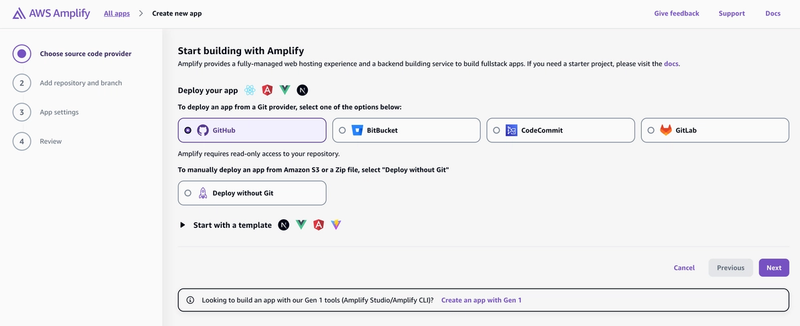
After you click next, provide AWS Amplify permission to access all or some of your GitHub repositories.
Select the repository your codebase is stored in as well as the branch you want to launch (this is usually the main branch).
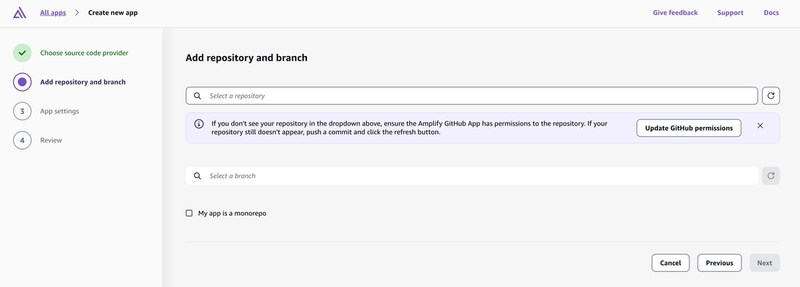
Finally go over the your app settings, review your app specifications and you're ready to deploy your site! As soon as your application shows the words "Deployed" in green, you can now move your cursor to the top right of the screen and click "Visit Deployed URL".
Your website is now live on the internet with CI/CD orchestrated by GitHub with the ability to update your site with the latest features and bug fixes within minutes. Your local folder housing your codebase becomes your builder's table where you can locally test your edits.
What Did We Learn?
So let's review:
We identified a real problem: UI and UX that couldn't compete with enterprise sites.
To address this, we moved away from template-based platforms and pursued a custom build deployed on the cloud. We used Kiro as our AI assistant, guiding it through natural language to build a website tailored to our needs. Then we deployed on AWS Amplify, a service that renders our site globally through edge locations worldwide.
Ultimately we provided a real solution that would benefit millions of small business. We did this with AWS and AI.
—
If you're just starting to build or you've never touched front-end development, I encourage you to start. As renaissance developers, we're tasked with systems thinking. That means understanding not just how things work, but how they feel to the people using them.
Now let's keep building.